

How to Use Visual Intelligence on iPhone Running iOS 26
By now, most iPhone users have likely upgraded to iOS 26, and it’s a major update. Along with a sleek new design called Liquid Glass, the update brings a range of fresh and enhanced features — from an improved battery-saving mode to a mobile version of the Mac’s Preview app.
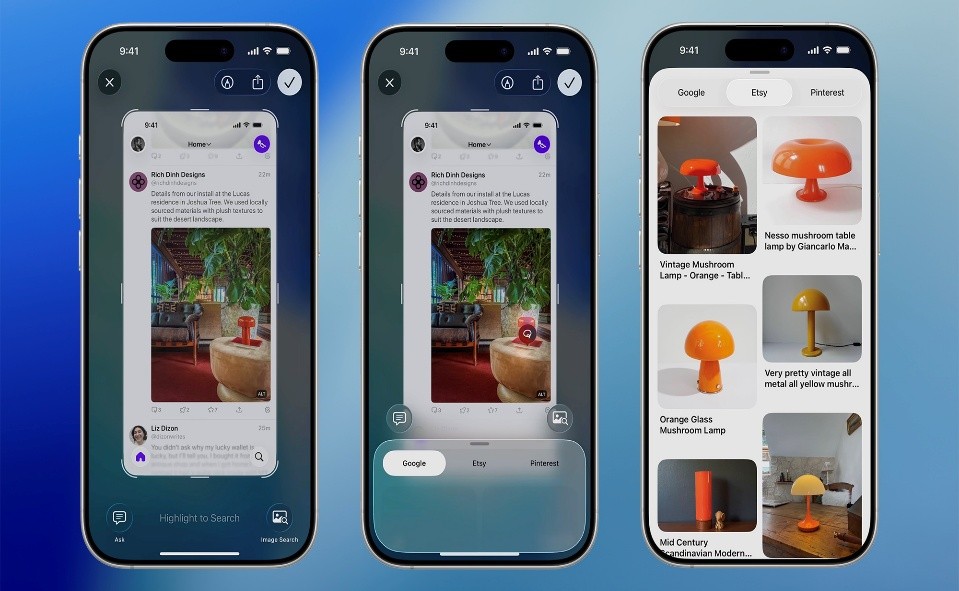
Figure 1. Using Visual Intelligence on iPhone with iOS 26.
Another standout addition in iOS 26 is the expanded Visual Intelligence tool, a core part of Apple Intelligence. This AI-powered feature can analyze whatever’s on your screen or in your camera view — helping you identify objects, extract information like dates and times from images or flyers, and instantly take action, such as adding events directly to your calendar. Figure 1 shows Using Visual Intelligence on iPhone with iOS 26.
Since Visual Intelligence is part of Apple Intelligence, you’ll need a compatible device to use it. That includes the iPhone 15 Pro and iPhone 15 Pro Max, as well as any iPhone 16 or iPhone 17 model, and the iPhone Air. Once you’ve confirmed your device supports Apple Intelligence and you’ve installed iOS 26, you’re ready to explore what Visual Intelligence can do.
Get Information from Screenshots
If you can take a screenshot, you can use Visual Intelligence to learn more about what’s on it. Simply press the Volume Up and Side buttons together to capture your screen. Once the screenshot appears, you’ll see your Visual Intelligence options along the bottom — these may vary depending on what’s displayed.
In the lower-left corner, you’ll find an Ask button. Tap it to ask ChatGPT questions about whatever’s visible in the image — whether it’s identifying a building in a photo, explaining a settings screen, or providing contextual information about what you captured. It works just like uploading a photo directly to the ChatGPT app, giving you quick, AI-powered insights right from your screenshots.
On the lower right corner, you’ll find the Search button. Tapping it opens a panel that displays visually similar images found by Google. If you want to narrow things down, you can scribble with your finger on a specific part of the screenshot — Google will then search for matches related only to that highlighted area.
This feature is especially handy when you want to track down a product you’ve seen online, identify an unfamiliar object, or even find more information about a person or place featured in your image.
If Visual Intelligence detects a time and date in your screenshot — say, on a poster for an upcoming concert — you’ll see an Add to Calendar button appear at the bottom of the screen. Tapping it lets you instantly create a calendar event, with the time, date, and location automatically filled in. You can also adjust any of the details before saving.
Depending on what’s in your screenshot, you might also see additional options like Summarize, which condenses long blocks of text into a quick overview, or Look Up, which helps you identify recognizable items such as company logos, landmarks, or animals.
Sometimes, Visual Intelligence will automatically recognize what’s in your screenshot — for example, identifying a plant species — and you can simply tap the label that appears to get more details.
Depending on the content, you may also see extra options like Read Aloud, which lets your iPhone speak the text in the image, or direct links to websites mentioned in the screenshot for quick access.
When you’re finished using Visual Intelligence, tap the checkmark (✓) in the top-right corner to save the screenshot to your photo gallery, or the cross (✕) in the top-left to discard it.
If you prefer not to see the full-screen preview every time you take a screenshot, you can turn it off by going to Settings → General → Screen Capture → Full-Screen Previews. Disabling it restores the old thumbnail-style preview, and you can still tap that thumbnail later to open the image with Visual Intelligence.
Source:POPULAR SCIENCE
Cite this article:
Priyadharshini S (2025), How to Use Visual Intelligence on iPhone Running iOS 26, AnaTechMaz, pp. 319
Recent Post
-

Google Unveils Keyboard Inspired by Classic Rotary Phones
Rotary phones, once a fixture in mid-century living rooms, faded into basements and.....
-
iOS 26 Introduces a New Way to Save Battery
Modern smartphones are becoming increasingly powerful, intelligent, and versatile.....
-

Why Does This Concept Phone Feature a Robot-Arm Camera?
When activated, the robotic arm raises the camera above the top of the phone and.....
-
How to Use Visual Intelligence on iPhone Running iOS 26
By now, most iPhone users have likely upgraded to iOS 26, and it’s a major update.....
-

ChatGPT: Everything About the AI Chatbot in One Place
Since its launch in November 2022, ChatGPT, OpenAI’s text-generating AI chatbot.....
-
Google’s Gemini 3 Model Keeps AI Excitement Riding High – For Now
Google’s newest chatbot, Gemini 3, has achieved notable improvements across multiple AI benchmark tests,....
-

Google DeepMind Co-Founder Warns: “The AI Industry is in a Bubble”
Speaking on the Hard Fork podcast with hosts Kevin Roose and....

Google Reverses Decision to Block Unverified Android Developers
Google’s August proposal would have required all Android developers to verify their identities starting next....

ChatGPT’s Voice Mode is Now Fully Integrated into the Main Interface
ChatGPT’s voice mode is becoming more convenient. On Tuesday, OpenAI announced an update to the ....
Speechify Brings Voice Typing and Assistant Features to its Chrome Extension
Speechify has primarily been a tool for listening to articles, PDFs,.....
-

Kick-Start Your Language-Learning Journey with Lifetime Access to Babbel
Now is the ideal moment to invest in yourself — and for many, that....
-

Android Auto Worldwide Now Getting Gemini Rollout
Google is rolling out Gemini to Android Auto, its smartphone projection system found in millions of cars, trucks,....
-

Meta to Roll Out Trial Premium Subscriptions Across Instagram, Facebook, and WhatsApp
Meta is preparing to test new subscription plans that offer...
-

How OpenAI and Google Expect AI to Transform Go-to-Market Strategies
For years, startups relied on traditional playbooks when launching....
-

WhatsApp Introduces New Feature Similar to Instagram Notes
WhatsApp is rolling out a feature similar to Instagram Notes, letting users post short text updates visible to....