

How To Use Apple Intelligence to Organize Your Emails
Managing emails is one area of digital life where AI can be a real lifesaver: For those of us who spend hours at our desks, navigating the constant stream of incoming messages and trying to reach inbox zero can feel overwhelming. Given the repetitive and time-consuming nature of email organization, it’s a task that seems perfect for AI assistance.
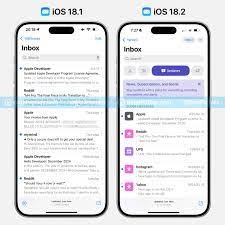
Figure 1. How to Organize Your Emails with Apple Intelligence.
Apple seems to be on the same wavelength, as Apple Intelligence features have now been integrated into the Apple Mail app on iOS, iPadOS, and macOS. The built-in AI can help manage your inbox by sorting through your messages, summarizing incoming emails, and even assisting you in composing your own responses if you're at a loss for words. Figure 1 shows How to Organize Your Emails with Apple Intelligence.
To use these features on iPhones, iPads, and Macs, all you need to do is ensure that Apple Intelligence is enabled, which can be found under Apple Intelligence & Siri in the Settings (iOS and iPadOS) or System Settings (macOS).
With Apple Intelligence, Apple Mail takes a page from Gmail’s playbook by sorting incoming messages based on their urgency and relevance. For instance, it can highlight time-sensitive emails like a same-day dinner invitation or a flight boarding pass. While Apple hasn't shared the specifics of how these sorting algorithms are fine-tuned, the feature is designed to prioritize what's most important.
To use this on iOS or iPadOS, open the Mail app, and you’ll notice a Primary tab that displays your most urgent emails and messages from frequently contacted individuals. On the right, you'll find options to view other types of emails: Transactions, Updates, Promotions, and All Mail. If an email is miscategorized, simply open it, tap the three dots in the top right corner, and select Categorize Sender to adjust the sorting.
On macOS, Apple Mail doesn’t yet offer all the same categories as on iOS and iPadOS. However, you can still prioritize your emails. To do this, open the desktop version of the Mail app, select one of your inboxes, and then go to the View menu. Here, you'll find an option to Show Priority, which you can enable or disable to bring your most important messages to the top.
Once you’ve sorted through your emails, reading them can still be a time-consuming task. Apple Intelligence can help by summarizing longer messages for you. On your iPhone or iPad, when you open an email, simply scroll to the top to find the Summarize button. If the email is part of a thread, you'll get a summary of the entire conversation; if it's a single email, the summary will only cover that particular message.
The same Summarize feature is available in the Mail app on macOS as well. After selecting an email, scroll to the top and click Summarize. This will either summarize the individual email or the entire conversation thread, depending on what’s selected and how your inbox is organized.
That said, it’s important to remember that AI isn’t perfect—Apple acknowledges this with Apple Intelligence. While the summaries can be helpful, they might not capture everything crucial in a conversation or fully grasp the tone and context of messages. Therefore, this feature is best used for less critical emails rather than those from your boss or lawyer.
With the popularity of ChatGPT and other generative AI tools, we're increasingly accustomed to having AI help us create text. This can be especially useful for your emails if you're struggling to find the right words or want to adjust the tone of your message. You can even use Apple Intelligence to expand or shorten your emails as needed, making the process of composing messages quicker and more efficient.
On iPhone or iPad, you can access Apple Intelligence’s writing tools by long-pressing inside an email. This brings up options like Proofread, Rewrite, or adjusting the tone to be more Friendly or Professional. You can also directly describe the changes you’d like in the input box or choose Compose to have ChatGPT generate new text. Additionally, you can opt to have your existing text summarized.
On macOS, you’ll find similar options in the Mail app. While composing an email, click the Writing Tools button in the toolbar at the top, which looks like a pen inside a star shape. From there, you can check spelling and grammar, change the tone, rewrite in a different style, or even use the ChatGPT extension (just make sure to connect it to Siri if you haven't already).
Source:POPULAR SCIENCE
Cite this article:
Priyadharshini S (2025),”How to Use Apple Intelligence to Organize Your Emails", AnaTechMaz, pp. 222
Recent Post
-
Alibaba Unveils Qwen 2.5 AI Model, Claims It Surpasses Deepseek-V3
Chinese tech giant Alibaba introduced its new Qwen 2.5-Max AI model, claiming it outperforms the .....
-

CERT-In Issues Urgent Security Advisory Regarding Vulnerabilities in Google Chrome
The Indian Computer Emergency Response Team (CERT-In) has...
-

Why Chinese Tech Firm Deepseek's 'Open AI' Could Be a Major Threat to Sam Altman
Since launching ChatGPT two years ago, OpenAI CEO Sam Altman.....
-

Comcast Introduces Ultra-Low Latency Internet Connection
Comcast has introduced new technology aimed at delivering ultra-low lag internet on its Xfinity service....
-

Lawmakers Urge Trump to Contemplate New Restrictions on Nvidia Chips Utilized by China's Deepseek
WASHINGTON (Reuters) – Two ....
-

T-Mobile Launches Starlink Satellite-To-Cell Beta for AT&T and Verizon Customers, Unveils Pricing
Beginning in July, T-Mobile’s direct-to-cell Starlink service will be .....
-

The App That Helps Your Mind Relax and Recharge
In a world that never slows down, your mind deserves a moment to rest. This app is designed to help you ...

Google Launches Android 16 Beta 1 For Pixel Devices: New Features and Supported Models
In addition to the features from the Android 16 Developer Previews.....

IOS 18.3.1 Update Released to Address Critical, Actively Exploited USB Security Vulnerability
iOS 18.3.1 began rolling out to users on Monday, delivering a crucial .......

Wikitok Could Be the Solution to Your Doomscrolling Habit
It can feel almost impossible to escape doomscrolling, but that’s no accident—it’s by design. Social media .......-

Deepseek Brings Both Advantages and Challenges to The AI Industry
DeepSeek's emergence as a competitor to ChatGPT is both exciting and concerning for the.......
-
How To Use Apple Intelligence to Organize Your Emails
Managing emails is one area of digital life where AI can be a real lifesaver: For those of us who spend hours ......
-

E Ink Gaming Slate Brings You Back To 80s Text Adventures
In the early days of home computing, onscreen graphics were limited, so text-based adventure games dominated....
-

Scientists Claim: Large Language Model
A large language model (LLM) is an artificial intelligence (AI) program designed to read text and....
-
Google Removes Gemini from The Main Search App On iOS
Google is removing its AI assistant, Gemini, from the main Google app on iOS to encourage users to .....