

Google’s New AI Tool Could Replace Photoshop for Photo Editing
Generative AI has already made creating images from text prompts commonplace. These tools are becoming increasingly sophisticated and versatile, even as questions persist around energy consumption, copyright issues, and their long-term effects.
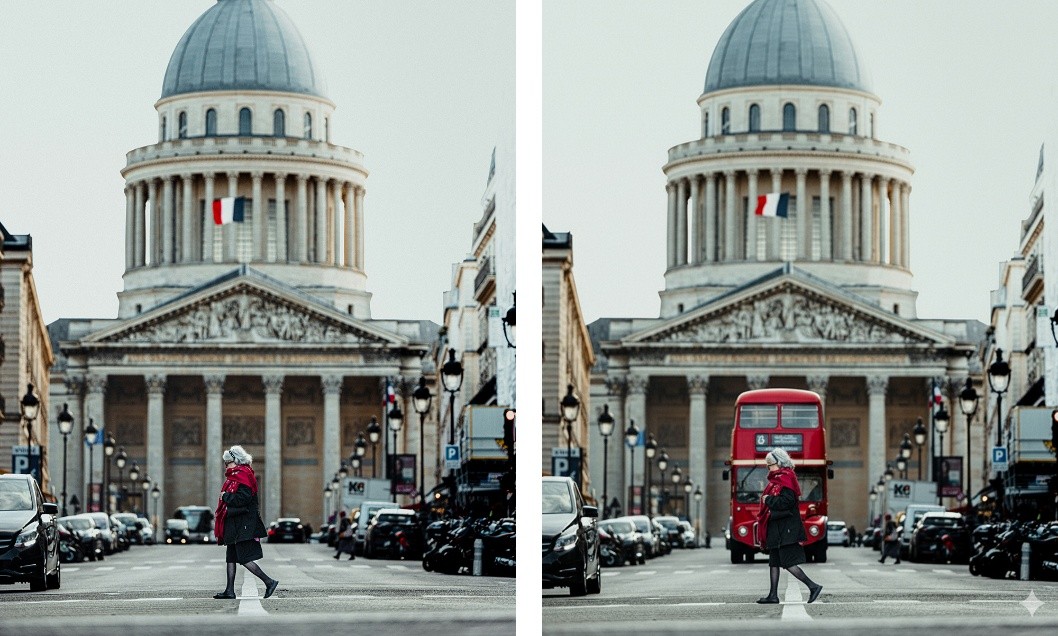
Figure 1. Google’s AI Photo-Editing Tool Might Make Photoshop Obsolete.
The latest significant update in this space comes to Google’s Gemini app. Nicknamed Nano Banana during testing, it’s officially released as Gemini 2.5 Flash Image. Figure 1 shows Google’s AI Photo-Editing Tool Might Make Photoshop Obsolete.
Beyond general improvements, Gemini 2.5 Flash Image truly shines in image editing—a task that has long challenged generative AI. Previously, edits could be inconsistent, alter the wrong parts of an image, or fail to follow instructions accurately.
“This update enables you to blend multiple images into a single composition, maintain character consistency for richer storytelling, apply targeted transformations using natural language, and leverage Gemini’s world knowledge to generate and edit images,” says Google.
With Gemini 2.5 Flash Image, you can make far more precise and specific modifications—almost like having a Photoshop expert at your fingertips. To try it out in the Gemini web app, click the tools slider icon in the input box, select Create images, and then click the + button to choose your source image.
As always, anything you input into Gemini can be used to further train Google’s AI models and may occasionally be reviewed by humans. Avoid sharing sensitive or confidential information. To prevent your chats or images from being saved, click Activity in the left-hand navigation pane and opt out.
Make precise edits
Sometimes, you only want to change one specific element in a photo—like turning a car from red to blue, removing a lamp, or even adding one. Gemini can deliver fast, effective results without the need for a full-featured image editor.
For example, if you have a photo of someone but aren’t fully happy with their appearance while keeping the rest of the scene intact, simply load your image and use a prompt like:
- “Change her jumper color to red”
- “Give him curly blonde hair”
The AI doesn’t always produce perfect results, but it works well most of the time. Typically, your requested edit will be applied while leaving the rest of the image unchanged. If the output isn’t exactly what you wanted, try refining your prompt and submitting it again—just keep an eye on usage limits. The more precise your instructions, the better the results.
Think about the kinds of edits you might normally need a traditional image editor for—Gemini can usually handle them if you describe your request clearly. For example, you could ask it to blur the background behind the main subject or clean up imperfections like dust or scratches in a photo.
Combine and manipulate images consistently
One of Gemini 2.5 Flash Image’s standout features is its ability to take one or multiple images and transform them in multiple ways while maintaining consistency. For instance, you could upload a self-portrait and have the AI place you in a completely new location, change your outfit, or do both—while keeping the result recognizable as you.
You can also experiment with subtle adjustments: change the backdrop to a beach, a field, or modify the lighting; alter the time of day or weather conditions in a photo—without the image looking like a completely AI-generated scene.
Combine images seamlessly
Gemini makes it easy to combine multiple images—simply select two or more photos using the + button in the prompt box. For instance, you could upload a picture of yourself along with an outfit you like from online and ask Gemini to generate an image of you wearing it. Or you could merge separate photos of your dog and cat into a single scene.
This may take some trial and error and precise instructions. Being specific about how the images should be combined helps a lot. Gemini generally preserves consistency across multiple images, so your pets or subjects will still look like themselves in the final result.
Add or remove elements from a scene
Once you’re familiar with Gemini’s capabilities, you can try more advanced edits. A common task is removing unwanted items from a photo—like a stranger in a group shot or clutter in your room.
- “Remove the person on the right and fill in the background”
- “Erase the red jumper on the floor”
You can also add objects or people to an existing image without creating a new scene from scratch. For example:
- “Place a cream couch along the back wall”
- Add a yellow bus driving by in the background”
Adding elements depends more on Gemini’s AI interpretation, so you might need a few attempts to get the perfect result. You can always make additional edits or start over with the original image if needed.
Reference:
- https://www.popsci.com/technology/google-ai-photo-editing/
Cite this article:
Priyadharshini S (2025), Google’s New AI Tool Could Replace Photoshop for Photo Editing, AnaTechMaz, pp.852
Recent Post
-
OpenAI Loosens Content Restrictions, Allowing ChatGPT to Generate Adult Erotica Starting in December
OpenAI plans to relax its content.....
-

DeepMind’s New AI Could Accelerate Discoveries in Cancer Treatment
Google DeepMind and Yale University have unveiled a new AI.....
-

Tumor-on-a-Chip Technology Propels CAR-T Therapy Development
A groundbreaking study has introduced a micro engineered.....
-

AI’s Fast-Track Approach to Efficiency Could Expose Systems to Hackers
AI is increasingly writing the world’s code—but with speed comes risk. A....
-

Google’s Veo 3.1 Redefines the Art of AI Filmmaking
When Google first unveiled Flow, its AI-powered filmmaking tool built on Veo, it promised to redefine creativity.....
-

AI Unlocks Breakthroughs for the Future of Solar Energy
Halide perovskites are emerging as some of the most promising materials for affordable....
-

Princeton’s Smart AI Cracks Major Challenge in Fusion Power
The name Diag2Diag comes from “diagnostic,” the term for techniques used to analyze plasma.....
-

AI Boom Fueled by Billion-Dollar Infrastructure Deals
Running AI products demands enormous computing power, and as companies race to harness.....
-

Enterprises are Going All-in on AI, Whether Ready or Not
It’s been a big week for AI in the enterprise. Zendesk unveiled new AI agents....
-

AI Discovers the Next-Generation Battery Beyond Lithium
Unlike conventional lithium-ion batteries, multivalent-ion batteries use ions carrying two or three.....
-
AI Takes Imaging Right to the Edge of Physical Limits
“Imagine observing a small object behind an irregular, cloudy pane of glass,”.....
-
Google’s New AI Tool Could Replace Photoshop for Photo Editing
Generative AI has already made creating images from text prompts commonplace. These tools.....
-
AI-Powered Effects Pedal Lets You Capture the Guitar Tone of Any Song
For guitarists who love experimenting with tones but....
-

AI Browsers at Risk: A Single Malicious Image Could Compromise Security
The vulnerability is another example of a prompt injection attack.....
-
OpenAI Unveils ChatGPT Atlas — The Browser Poised to Replace Chrome
Built on Google’s Chromium engine, Atlas offers familiar tools like tabs, bookmarks, password autofill.....