

How to Disable AI Features in Windows for a More Peaceful Experience
Microsoft—like most major tech companies—is packing artificial intelligence into nearly every corner of its products. You’ll find it in Microsoft Edge, the Office suite, and even in simple apps like Notepad and Paint.
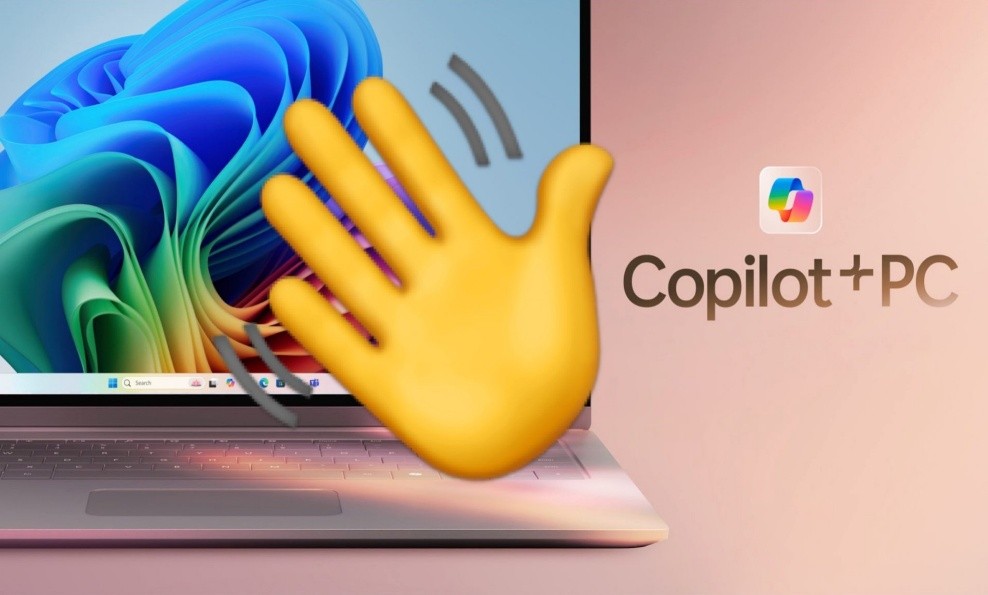
Figure 1. Tuning Out AI: Disabling Windows Features for a Calmer Workflow.
While it can feel inescapable, you’re not required to use these AI features. If you prefer not to have digital assistants popping up or would rather rely on your own skills for writing or editing, there are ways to disable or hide the AI integrations. Figure 1 shows Tuning Out AI: Disabling Windows Features for a Calmer Workflow.
Hide (or Uninstall) Copilot
These steps apply to a Copilot+ PC running Windows 11 Home. Depending on your device's age and Windows version, your options may vary slightly—but most settings should be similar across systems.
New Windows PCs now come with Copilot preinstalled. You might even have a dedicated Copilot key on your keyboard. Like Google Gemini or ChatGPT, Copilot is designed to assist with tasks like answering questions, generating ideas, and offering suggestions. But if you find it more distracting than helpful, you have the option to hide or disable it.
To simply hide Copilot, right-click its icon on the taskbar and select Unpin from taskbar. This will remove the shortcut from view.
For additional settings, open the Copilot app, click your Microsoft account icon in the bottom-left corner, then choose Settings. (If you don’t see your avatar, click the side panel button in the top-left corner to reveal it.)
Once you're on the Copilot Settings page, you’ll find a few useful toggles. To prevent Copilot from launching automatically when your PC starts, turn off Auto start on log in. You can also disable the Alt + Spacebar shortcut, which stops the AI assistant from opening accidentally via the keyboard.
If you'd rather take a more permanent route, you can uninstall Copilot like any other app. Open the main Settings panel, go to Apps > Installed apps, and scroll through the list until you find Copilot. Click the three-dot menu next to it and select Uninstall.
Disable AI Features in Microsoft Edge
Microsoft Edge comes with several AI features built in by default. While switching to a different browser is one way to avoid them—though most browsers are also moving toward more AI integration—you can still use Edge with minimal AI involvement if you prefer.
To reduce AI in Edge:
- Open Microsoft Edge.
- Click the three-dot menu in the top-right corner and choose Settings.
- In the sidebar, go to Copilot and sidebar, then select Copilot.
- Toggle off Show Copilot button on the toolbar to remove the icon from Edge’s interface.
Removing Other AI Features in Windows
AI is deeply embedded across Windows, often under the Copilot name—but not always. One notable feature is Windows Recall, which uses AI to track nearly everything you do on your PC, allowing you to search through past activity like a system-wide history log.
By default, Windows Recall is turned off on new Windows 11 PCs. However, if it’s been enabled, here’s how to check and disable it:
- Open Settings.
- Navigate to Privacy & security > Recall & snapshots.
- Toggle the switch to turn off Recall, if it’s active.
A Note on Paint and Future AI Additions
Unfortunately, as of now, there’s no option in the Paint app’s settings to remove the Copilot button. Even if you uninstall the main Copilot app from Windows, the icon remains on the toolbar. Earlier versions of Paint did allow users to remove it, so this functionality may return in the future.
It’s clear that Microsoft—and the tech industry at large—will continue layering AI features across its software. While some users may welcome these tools, others may prefer a quieter, more self-reliant experience. Whatever changes come, it’s worth regularly checking system and app settings for options to disable or hide AI features.
Source: POPULAR SCIENCE
Cite this article:
Priyadharshini S (2025), How to Disable AI Features in Windows for a More Peaceful Experience, AnaTechMaz, pp.270
Recent Post
-

OpenAI May Soon Allow You To ‘Sign in with ChatGPT’ on Third-Party Apps
OpenAI is considering introducing a "Sign in with ChatGPT".....
-

Microsoft Begins Testing Copilot for Gaming in The Xbox App on iOS and Android
Microsoft announced on Wednesday the beta rollout of its Copilot......
-
Nvidia Anticipates Billions in Revenue Loss Due to H20 Chip Licensing Mandates
As Nvidia announced its earnings for the first quarter of fiscal......
-
Apple Reportedly Set to Launch AI-Powered Battery-Saving Feature in Ios 19 For Iphones
Speculation is heating up around the upcoming iOS 19 update.....
-
Android 16 Rolls Out Enhanced Security and Intelligent Anti-Theft Features
Android 16, the upcoming major update for Android devices, is......
-

Children’s Websites Riddled with Tracking and Inappropriate Ads, Study Finds
At first glance, websites designed for children appear safe and......
-

Google Maps User Spots Mysterious Satellite Zooming Over Texas, possibly a Starlink Satellite
In an unexpected twist of digital sleuthing, a Reddit user recently......

Trump Mobile Unveils $499 Android Smartphone with an Unlimited Service Plan Priced At $47.45 Per Month
The Trump Organization has...
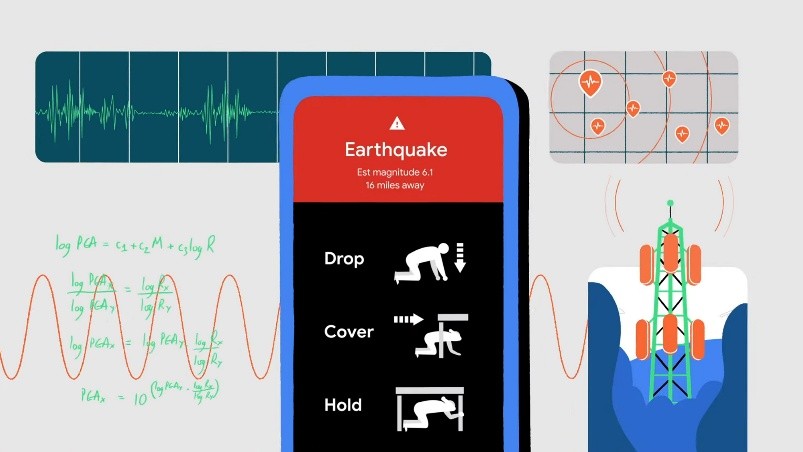
How Your Android Phone Is Capable of Detecting Earthquakes
Your Android phone has a hidden life-saving feature you may not know about: it can detect earthquakes and send ...

ElevenLabs Launches Mobile Text-to-Speech App—No Browser Required
ElevenLabs has introduced a new mobile app that allows users to...
-

Research Links Addictive Tech Habits in Teens to Greater Mental Health Risks
Adolescents who become deeply attached to mobile phones,...
-

Researchers Crack Security of eSIM Chips Found in Billions of Devices
A newly discovered vulnerability in widely used eSIM chips could...
-

Rugged Adventure Phone Delivers Sharper Visuals with Built-In Projector
Portable projectors can deliver movies to the campsite or support......
-

What Gibberish Reveals About ChatGPT’s Grasp of Language
By now, most of us have tried to stump a chatbot — asking if it has feelings, testing......
-
How to Disable AI Features in Windows for a More Peaceful Experience
Microsoft—like most major tech companies—is packing artificial......